
If you select a report and the details tab, in the permissions subtab you’ll see Tree Item is not one of the Types selected.
A fast way to enable many reports is like this.
- Before starting, make sure the list of Types are correct
– Select Administrator security group (under etrack settings)
– Tick permission 186 ‘Access to Update Types Utility’
– Click somewhere else in the tree to force a save
– Select main Tools menu and Utilities->Update Types - Then expand the tree as follows.
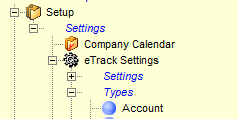
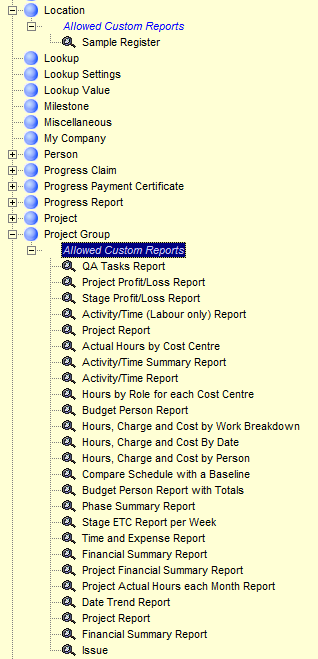
- Scroll down and drag the blue relationship ‘Allowed Custom Reports’ from under Project Group to the tree item you want, and select *Relate* from the tree.
Eg below shows reports already allowed for a Project Group onto a Location.
- Right click on the tree item and select Reports and they’ll appear.
Posted in: eTrack FAQ, Reports