
There may be a couple of simple answers. I’ll start with the most likely cause.
eTrack for most users will filter out Inactive items in the tree structure since most people will only care about those items which remain active.
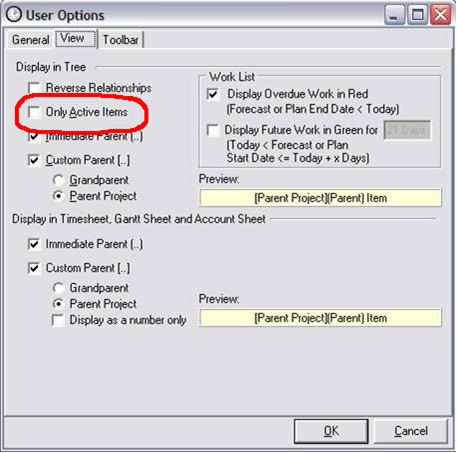
There is a user option which can be toggled which will allow you to view the Inactive items. To change this user option you can do the following:
1. Select from the Main menu Tools User Options to bring up user options
2. Select the View TAB
3. Un-tick the user option Only Active Items (if checked) screen shot shown below.
If this isn’t the case then the person will have been re-filed under a Past Staff resource group in the tree look there and see if they are visible there. If so you can re-activate them using the active checkbox.
Posted in: eTrack FAQ, Maintenance